





Have you ever clicked on a website and left before it even finished loading? You’re not the only one. According to Google, increasing page load time from 1 second to 3 seconds raises the probability of a visitor bouncing by 32%. Stretch that wait to 5 seconds, and the likelihood of them leaving jumps to 90%.
Most website owners assume the answer is upgrading to a faster hosting plan. While good hosting certainly matters, it’s only part of the story. Many slow websites already run on capable servers but still waste time rebuilding the same pages, loading identical files, and repeating database queries for every visitor. That’s where caching makes the difference.
Website caching stores ready-to-serve copies of pages and static assets, allowing browsers, servers, and content delivery networks (CDNs) to deliver content much faster while reducing unnecessary work behind the scenes. The result isn’t just a faster website; it can also mean lower server load, smoother performance during traffic spikes, and a better experience for every visitor.
In this guide, you’ll learn how website caching works, the differences between browser cache, server cache, and CDN caching, when each one matters, and the practical steps you can take to build a faster, more responsive website.
Website Caching at a Glance
If you’re short on time, here’s a quick summary of the key facts about website caching.
| Feature | Fact |
|---|---|
| Purpose of caching | Stores copies of frequently requested pages and files to reduce loading time. |
| Browser cache location | Stored on the visitor’s device. |
| Server cache location | Stored on the hosting server. |
| CDN cache location | Stored on edge servers around the world. |
| Best for | WordPress, WooCommerce, blogs, eCommerce, and business websites. |
| Google recommendation | A good Largest Contentful Paint (LCP) is 2.5 seconds or less. |
| Common cached files | Images, CSS, JavaScript, fonts, videos, and PDFs. |
What Is Website Caching and Why Is It Important?
Think of website caching like your favourite cafe remembering your regular order. The first cup takes time to prepare, but the next one is ready much faster because most of the work has already been done. Caching works in a similar way by storing a ready-to-serve copy of a webpage instead of rebuilding it every time someone visits.
Without caching, dynamic websites like WordPress, WooCommerce, or Magento generate each page on demand. That means running PHP scripts, querying the database, and processing content before anything reaches the visitor’s browser. With caching enabled, much of that work is skipped, allowing pages to load faster while reducing the load on your server.
Over the years, one thing has become clear: a slow website isn’t always a hosting problem. We’ve seen businesses upgrade to more powerful servers expecting dramatic improvements, only to discover that poor caching was the real bottleneck. In many cases, a properly configured caching strategy delivers a bigger performance boost than simply adding more server resources.
You’ll often come across these two terms:
- Cache Hit: The requested page is already stored and is served instantly.
- Cache Miss: The page isn’t cached yet, so the server generates it before saving it for future requests.
When caching is configured correctly, it helps your website:
- Load pages faster
- Reduce PHP execution and database queries
- Lower server resource usage
- Improve Core Web Vitals
- Handle traffic spikes more efficiently
Our take: It’s easy to chase a perfect PageSpeed score, but visitors don’t notice scores; they notice speed. If your pages load quickly, navigation feels smooth, and checkout works without delays, you’re solving the problem that actually matters.
Types of Website Cache
Website caching works at different levels. The two most common types are browser cache and server cache. While they work in different places, both help your website load faster and reduce unnecessary server processing.
Browser Cache
The browser cache stores static files such as CSS, JavaScript, images, and fonts on the visitor’s device. When they return to your website, these files are loaded locally instead of being downloaded again, making repeat visits much faster.
Server Cache
Server cache stores website data on the hosting server, so pages don’t have to be generated from scratch for every request. This is especially important for dynamic websites like WordPress and WooCommerce.
The main types of server cache are:
- Page Cache: Stores a ready-to-serve HTML page.
- Object Cache: Stores database query results.
- PHP OPcache: Stores compiled PHP code in memory.
Hosting Insight: We often see websites running multiple caching plugins in the hope of improving performance. In reality, they can conflict with each other, create unnecessary overhead, and even slow the site down. In most cases, one properly configured caching solution delivers faster, more stable, and more consistent results.
Browser Cache vs Server Cache
| Browser Cache | Server Cache |
|---|---|
| Stored on the visitor’s device. | Stored on the hosting server. |
| Speeds up repeat visits. | Speeds up every visitor. |
| Controlled through HTTP cache headers. | Managed by the hosting server or caching software. |
| Reduces file downloads. | Reduces server processing and database queries. |
The best website performance comes from using both browser and server caching. Browser caching speeds up page returns for returning visitors, while server caching ensures every visitor receives pages more quickly with less work for the server.
How Does a CDN Improve Website Speed?
A Content Delivery Network (CDN) stores copies of your website’s static files on servers around the world. Instead of downloading those files from your main hosting server every time, visitors receive them from the nearest edge server.
For example, if your website is hosted in Mumbai, visitors from Delhi can usually access it quickly. However, someone visiting from London may experience slower loading times because the data has to travel a much greater distance. A CDN solves this by serving cached files from a nearby location, reducing latency and improving page load times.

What Files Does a CDN Cache?
A CDN usually caches static files such as
- Images
- CSS files
- JavaScript files
- Fonts
- Videos
- Downloadable files like PDFs
Serving these files from edge servers reduces the load on your hosting server and helps your website stay fast, even during busy periods.
When Does a CDN Make the Biggest Difference?
A CDN benefits almost every website, but it’s especially useful if you have:
- Visitors from different cities or countries
- An eCommerce store
- A high-traffic blog
- A SaaS application
- A media-rich website with lots of images or videos
Many hosting providers make CDN setup simple. For example, BigCloudy includes Cloudflare CDN integration with its hosting plans, allowing your website to deliver static content from Cloudflare’s global network while reducing the load on your origin server. This helps your website load faster and remain responsive, even as traffic grows.
How Browser Cache, Server Cache, and CDN Work Together
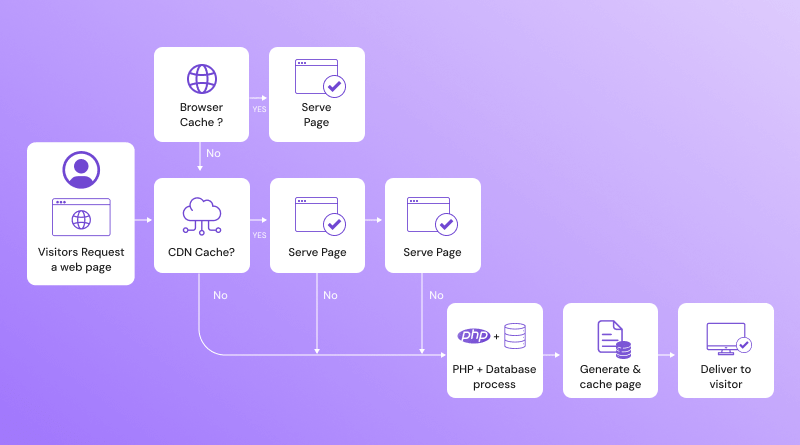
A fast website doesn’t rely on just one type of caching. Instead, browser cache, server cache, and a CDN work together, with each handling a different part of the request.
When someone visits your website:
- The browser first checks if it already has the required files stored locally.
- If not, the CDN looks for a cached copy on the nearest edge server.
- If the content isn’t available there either, the request reaches your hosting server, which serves a cached page or generates a new one.
- The content is then delivered to the visitor and cached for future requests.
Each layer has a simple role:
- Browser cache speeds up repeat visits.
- Server cache reduces the work your hosting server performs.
- CDN delivers static files from the nearest location.
Together, these layers reduce loading times, lower server load, and create a faster experience for every visitor.
Why WooCommerce Needs Special Cache Rules
Unlike a standard website, a WooCommerce store contains both static and dynamic pages. While static pages can be safely cached to improve performance, dynamic pages display user-specific information and should always load fresh.
Caching the wrong pages can lead to issues like incorrect cart contents, login problems, or outdated account information.
| Cache These Pages | Don’t Cache These Pages |
|---|---|
| Product pages | Cart |
| Product category pages | Checkout |
| Blog posts | My Account |
| Home page | Login/Register |
| Static landing pages | Order confirmation |
Best Practice: Cache pages that display the same content for every visitor, such as product listings, category pages, blog posts, and other static pages. Exclude pages containing personal or real-time data, like the cart, checkout, and account pages, so customers always see accurate information.
How to Enable Browser Caching on Your Website
Enabling browser caching is easier than many people expect. The right method depends on the type of website and server you’re using.
For WordPress Websites
If your website runs on WordPress, you don’t need to edit server files manually. Popular caching plugins can configure browser caching with just a few clicks. Some of the most widely used options include:
- LiteSpeed Cache
- WP Rocket
- W3 Total Cache
These plugins automatically set the required cache rules, helping browsers store static files like images, CSS, and JavaScript for future visits.
Most modern WordPress performance plugins combine page caching, browser caching, compression, and cache preloading into a single solution, reducing the need for manual server configuration.
For Apache Servers
On Apache servers, browser caching is typically configured through the .htaccess file using Expires Headers and Cache-Control directives. These settings tell browsers how long they should keep cached files before requesting a fresh copy.
For Nginx Servers
Nginx handles browser caching through its server configuration by setting Cache-Control and expires headers. This gives you control over how long different types of files remain cached in a visitor’s browser.
If Your Hosting Already Handles It
Many modern hosting providers already handle browser caching at the server level. For example, BigCloudy includes LiteSpeed technology, properly configured Cache-Control headers, and server-side caching optimizations with its hosting plans. That means you spend less time tweaking performance settings and more time focusing on your website.
Website Caching Best Practices for Faster Loading
Caching works best when it’s configured thoughtfully. A few simple practices can make a noticeable difference in website performance.
- Cache static files such as images, CSS, JavaScript, and fonts.
- Set appropriate cache expiration times so browsers know when to reuse or refresh files.
- Clear or purge your cache after updating your website to ensure visitors see the latest version.
- Combine caching with image optimization for even faster page loads.
- Use a CDN if your website serves visitors from different locations.
- Enable GZIP or Brotli compression to reduce file sizes.
- Use modern protocols like HTTP/2 or HTTP/3 whenever possible.
- Keep your caching plugins and server software up to date.
- Avoid running multiple caching plugins at the same time, as they can conflict with each other.
- Monitor your Core Web Vitals regularly to confirm that your caching strategy is actually improving performance.
Practical Tip:
Don’t get obsessed with chasing a perfect 100/100 PageSpeed score. Visitors never see that number; they only notice how quickly your website loads and responds. A site that consistently feels fast, responsive, and reliable for real users is far more valuable than one that’s been over-optimized just to satisfy a testing tool.
What Is Cache Invalidation?
Cached content can become outdated whenever you update your website. Cache invalidation removes or refreshes old cached files so visitors always see the latest version.
Purge Cache vs Clear Cache
- Purge Cache: Removes only the outdated cached pages or files.
- Clear Cache: Deletes the entire cache, forcing everything to be rebuilt.
For most updates, purging specific pages is faster and more efficient than clearing the entire cache.
Automatic vs Manual Purging
Most caching plugins and managed hosting platforms automatically purge the cache after you publish or update content. However, if changes aren’t visible after updating your website, you can manually purge the cache to force the latest version to be served.
Common Website Caching Mistakes That Can Slow Your Site Down
Caching can improve performance, but incorrect settings often create new problems instead of solving them.
Some of the most common mistakes include:
- Installing multiple caching plugins can conflict with one another.
- Forgetting to clear the cache after updating website content or making design changes.
- Caching dynamic pages, such as shopping carts, checkout pages, or user login areas, where content changes frequently.
- Setting cache expiration times that are either too short or too long.
- Ignoring mobile caching when your website serves different layouts for mobile users.
- Forgetting to purge the CDN cache after updating static files causes visitors to see outdated content.
Reviewing these settings from time to time helps ensure your cache continues to improve performance instead of getting in the way.
Does Website Caching Improve SEO?
Website caching is not a direct Google ranking factor, but it helps improve the performance metrics that influence search visibility.
The connection looks like this:
Website Caching – Faster Page Loading – Better Core Web Vitals – Better User Experience – Stronger SEO Potential
Google uses Core Web Vitals to measure real-world page experience. Metrics such as Largest Contentful Paint (LCP), Interaction to Next Paint (INP), and Cumulative Layout Shift (CLS) help evaluate how quickly a page loads, how responsive it feels, and how visually stable it remains. Proper caching can improve these metrics by reducing server response time and delivering pages more efficiently.
Google recommends a Largest Contentful Paint (LCP) of 2.5 seconds or less for a good page experience. By serving cached pages instead of rebuilding them for every request, caching helps pages load faster and supports better Core Web Vitals, especially on dynamic websites like WordPress and WooCommerce.
Caching also reduces server workload, allowing visitors to access content more quickly. Faster pages often lead to better engagement, lower bounce rates, and a smoother browsing experience.
Our take: Caching works best as part of a complete website optimization strategy. Combine it with Core Web Vitals optimization, fast hosting, image optimization, clean code, and a CDN to deliver a faster experience for users and improve your website’s overall SEO potential.
Fact: Google’s Core Web Vitals guidance recommends achieving a Largest Contentful Paint (LCP) of 2.5 seconds or less to provide a good user experience. Faster loading pages keep visitors engaged and contribute to better overall website performance.
Conclusion
Website caching is one of the simplest ways to improve your site’s performance. Browser caching speeds up repeat visits, server caching reduces the workload on your hosting server, and a CDN delivers content from servers closer to your visitors. Together, these technologies help pages load faster, reduce server resource usage, and improve Core Web Vitals.
If you’re using a hosting provider like BigCloudy, many of these optimizations are already built in. Features such as LiteSpeed technology, server-level caching, NVMe SSD storage, and Cloudflare CDN integration help improve website performance without requiring complex manual configuration. That means you can spend less time managing caching settings and more time focusing on your website.